The answer is yes. As long as you know the password, Backuptrans iTunes Backup Extractor must be the best choice to recover iPhone data from encrypted iTunes backup files. After you entered your password, the software will decrypt the encrypted iTunes backups and recover valuable data (e.g. Videos, Photos, SMS messages, Contacts, Calendar events, Recordings, Voicemails, Notes, Call historys and other app data). It even lets you restore data from encrypted and non-encrypted iTunes backup back to your iPhone or even to a new iPhone.
Step by step:
1 Run Backuptrans iTunes Backup Extractor on computer. Then click the "Load iTunes Backup" button to load a backup on your computer.
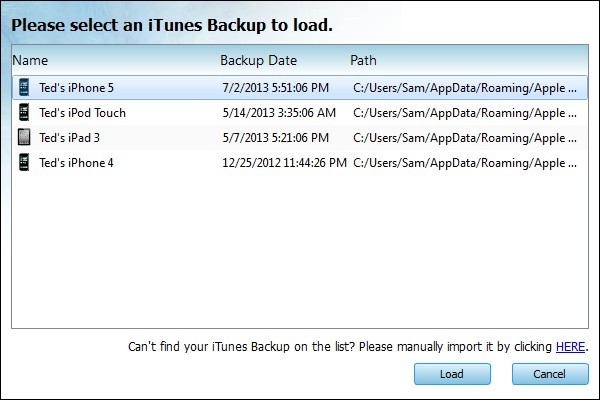
2 Backuptrans iTunes Backup Extractor will detect all iTunes backup files automatically on computer. Select your encrypted iPhone Backup on list and then click "Load" button to finish.
3 Please enter your password to decrypt the encrypted iPhone backup. Click "OK" to continue.
4-A Recover videos, photos, camera rolls etc media files
1) Click "Extract" button to extract and save the files from iTunes Backup to a folder on computer.
2) Connect your iPhone to computer.
3) Launch iTunes to Sync videos, photos, camera rolls from computer back to iPhone.
4-B Recover SMS Messages, Contacts, Notes, Calendar events and Bookmarks
1) Connect your iPhone to computer.
2) Choose SMS Messages, Contacts, Notes, Calendar events or Bookmarks section and then click the "Restore To Device" button.
Or you can right click the section and then choose "Restore to Device"
Done. Free download this iTunes Backup Extractor to try.
If you are using Mac, please use Backuptrans iTunes Backup Extractor for Mac.

No comments:
Post a Comment