Wednesday, July 31, 2013

Recover SMS from iTunes Backup after downgrade from iOS 7 to iOS 6

"How can I recover iPhone SMS from iTunes Backup after downgrade iPhone from iOS 7 to iOS 6?"

Many iPhone users will face the same problem when they downgrade their iPhone to iOS 6 from iOS 7. Simply because Apple(iTunes) does not let them restore backup to iPhone with older iOS version. Luckily, Backuptrans iPhone SMS Backup & Restore makes it possible and very easy to recover and restore SMS from iOS 7 to iOS 6 iPhone. It helps you easily restore text messages from iOS 7 iTunes backup to iPhone or to a new iPhone. No other iPhone utility softtware can do this. The following article will show you the detailed solution on how to recover SMS from to iOS 6 iPhone from iOS 7 iPhone backup files step by step:



Note: Don't connect your iPhone to computer before importing SMS from iTunes Backup to Backuptrans database.

Step 1: Import SMS from iTunes backup(iOS 7) to local database
After iImported. All SMS messages on your iOS 7 iTunes Backup have been save on Backuptrans database.


Step 2: Restore SMS from Backuptrans database to iOS 6 iPhone
1) Connect your iPhone with iOS 6 to computer.
2) Click the backup file in Local Database list.
3) Turn to top toolbar and press "Transfer SMS from Database to iPhone" button or go File -> Transfer SMS from Database to iPhone.

Step 3: Choose a device you want to restore to
Select your iOS 6 iPhone that you want to restore SMS to. Click Confirm to continue.

Restored successfully

Step 4: Waiting for iPhone to restart and refresh messages itself
You will see all your messages saved on your iOS 6 iPhone after restarting it.


Done! Free download this iPhone SMS Backup & Restore software to try.

If you are using Mac, please download Backuptrans iPhone SMS Backup & Restore for Mac to use.

Monday, July 29, 2013

Recover data from encrypted iPhone Backup

"Set a password to encrypt iPhone backup file when backing up iPhone with iTunes on computer but now lost my iPhone. Is there a way to recover data from this encrypted iPhone Backup?"

The answer is yes. As long as you know the password, Backuptrans iTunes Backup Extractor must be the best choice to recover iPhone data from encrypted iTunes backup files. After you entered your password, the software will decrypt the encrypted iTunes backups and recover valuable data (e.g. Videos, Photos, SMS messages, Contacts, Calendar events, Recordings, Voicemails, Notes, Call historys and other app data). It even lets you restore data from encrypted and non-encrypted iTunes backup back to your iPhone or even to a new iPhone.


Step by step:
1 Run Backuptrans iTunes Backup Extractor on computer. Then click the "Load iTunes Backup" button to load a backup on your computer.

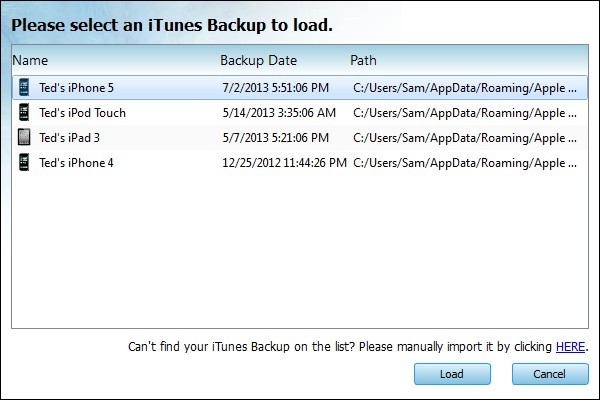
2 Backuptrans iTunes Backup Extractor will detect all iTunes backup files automatically on computer. Select your encrypted iPhone Backup on list and then click "Load" button to finish.

3 Please enter your password to decrypt the encrypted iPhone backup. Click "OK" to continue.

4-A Recover videos, photos, camera rolls etc media files
1) Click "Extract" button to extract and save the files from iTunes Backup to a folder on computer.
2) Connect your iPhone to computer.
3) Launch iTunes to Sync videos, photos, camera rolls from computer back to iPhone.

4-B Recover SMS Messages, Contacts, Notes, Calendar events and Bookmarks
1) Connect your iPhone to computer.
2) Choose SMS Messages, Contacts, Notes, Calendar events or Bookmarks section and then click the "Restore To Device" button.
Or you can right click the section and then choose "Restore to Device"

Done. Free download this iTunes Backup Extractor to try.

If you are using Mac, please use Backuptrans iTunes Backup Extractor for Mac.


Sunday, July 28, 2013

iTunes Data Recovery - Recover lost Data from iTunes Backup

Lost or broken your iPad? Accidentally deleted SMS messages,contacts or Notes from iPhone? Failed iOS uopdate with iPod Touch? As long as you have synced your iOS device with iTunes on computer, Backuptrans iTunes Backup Extractor must be a good choice to help you recover all lost data from iTunes Backup files.


What can the iTunes Data Recovery recover for iPhone iPad iPod Touch?

Backuptrans iTunes Backup Extractor software can recover photos, videos, camera rolls, voicemails, SMS Messages, contacts, notes, calendar events, call historys, voice memos, Safari bookmarks and other app Data that might otherwise be inaccessible.

You can simply click the Extract button to save photo, video, camera roll, voice memo, note, voicemail, calendar event onto computer local disk. As for SMS message, contact, safari bookmark, call history you can choose to save them as TXT, CSV, PDF or HTML file. MMS (Message with attachment) extracting is also supported.


When You need iTunes Data Recovery?

You can recover lost data from iTunes backup file when:
You inadvertently deleted files on iOS device.
You restore your idevice to Original Factory Setting.
Your iPhone iPad iPod Touch is lost, stolen or broken.
You lost data after iOS 7 upgrade or Jailbreaking.


Why Backuptrans iTunes Backup Extractor?

 Unlike other iTunes data recovery programs(that can only extract data from iTunes backup on computer), Backuptrans iTunes Backup Extractor supports data restore also. It provides an easy way to restore SMS Messages, Contacts, calendar events, notes, bookmarks from iTunes Backup back to your iPhone iPad iPod directly. All data from iTunes Backup will be merged perfectly on your iPhone iPad iPod . Restoring data to a new iPhone iPad iPod is also supported.


Free download this iTunes Data Recovery program to try.

Note: If you are using Mac, please use iTunes Backup Extractor for Mac.


By the way, retrieve data from encrypted iPhone Backup is also supported. Please refer to this tutorial on how to extract & recover data from encrypted iTunes backup files?

Good luck!